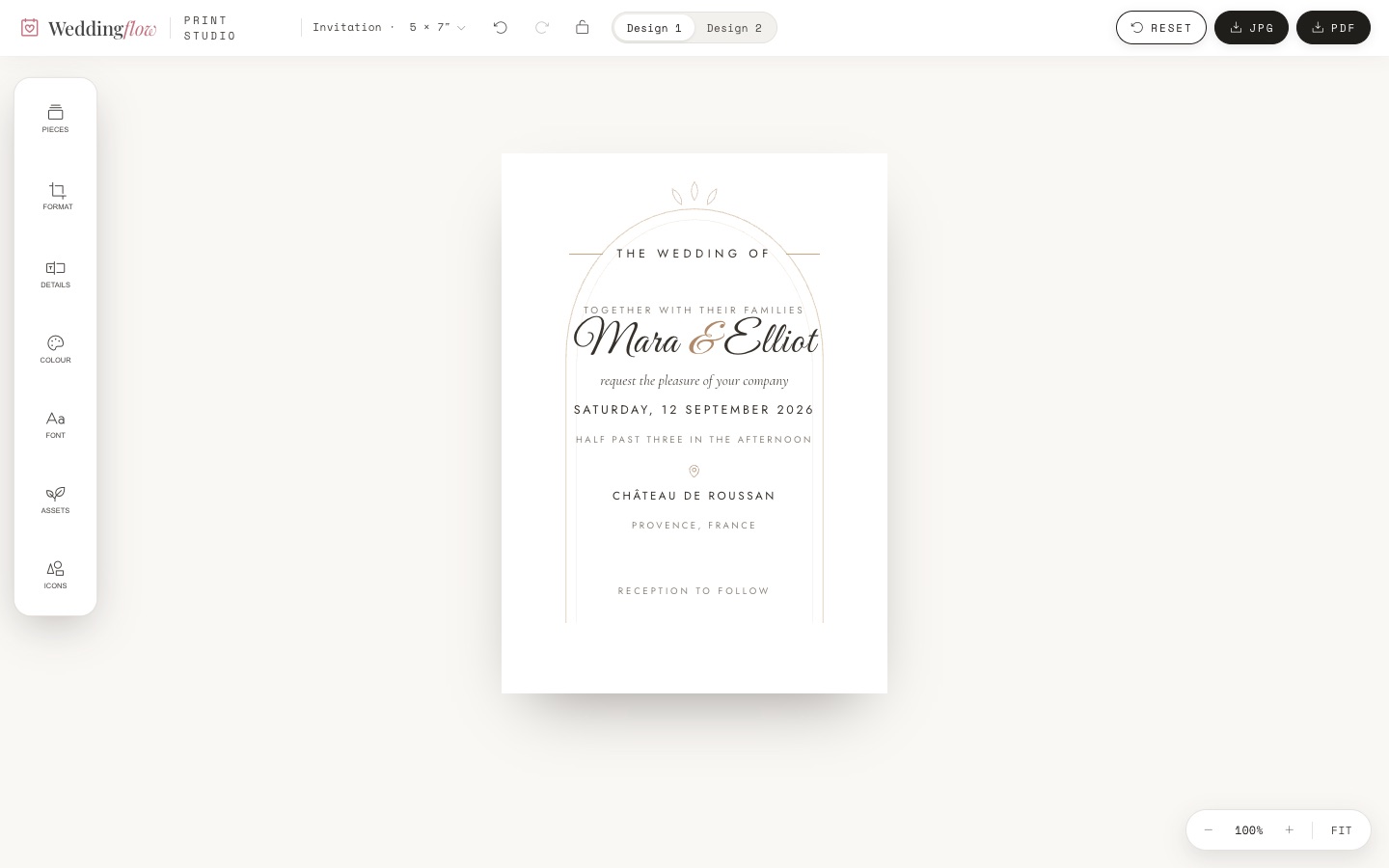
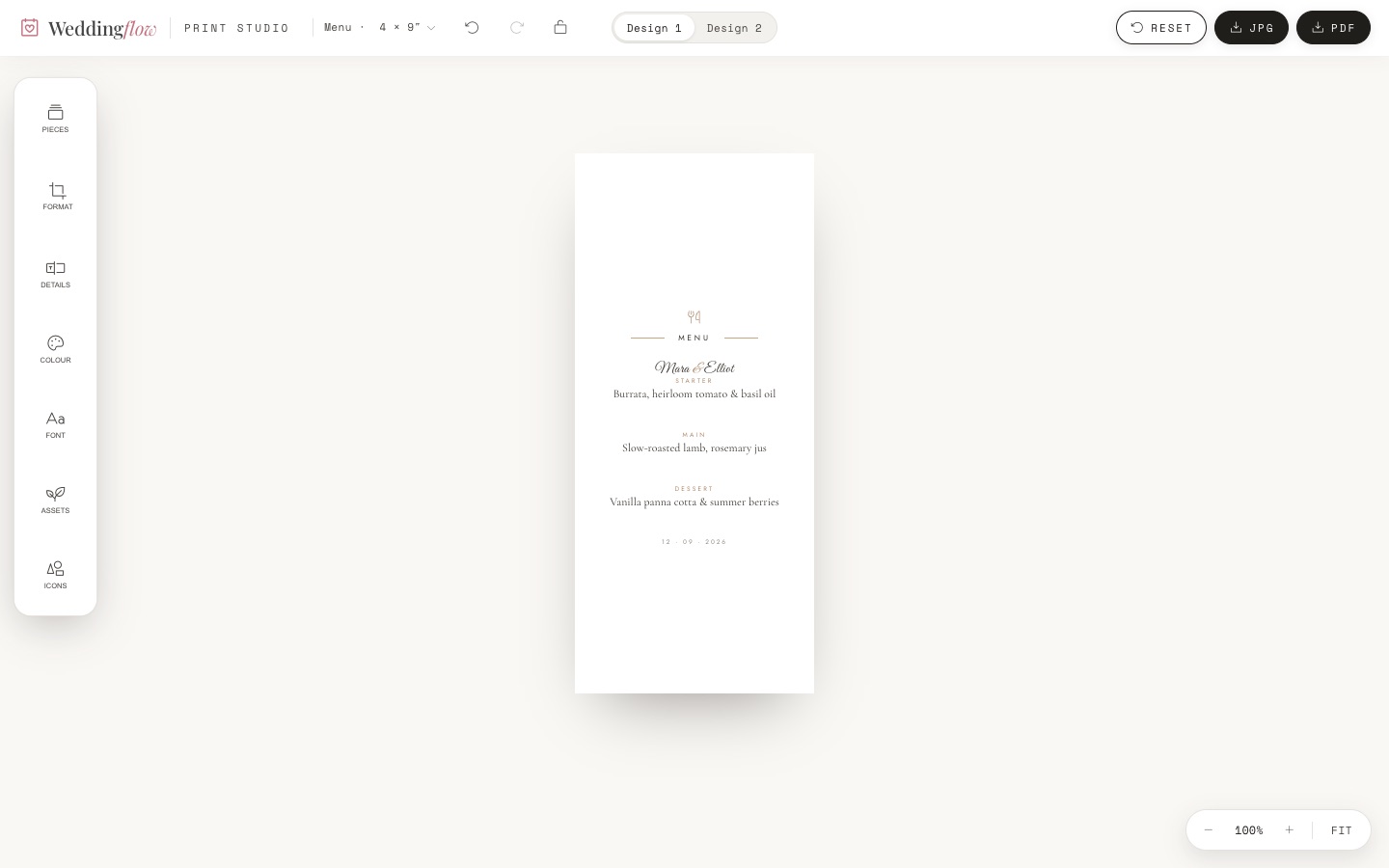
Everything your guests need, at one link
No code, no design tools. Click anything to change it — it saves as you go, and looks polished automatically.
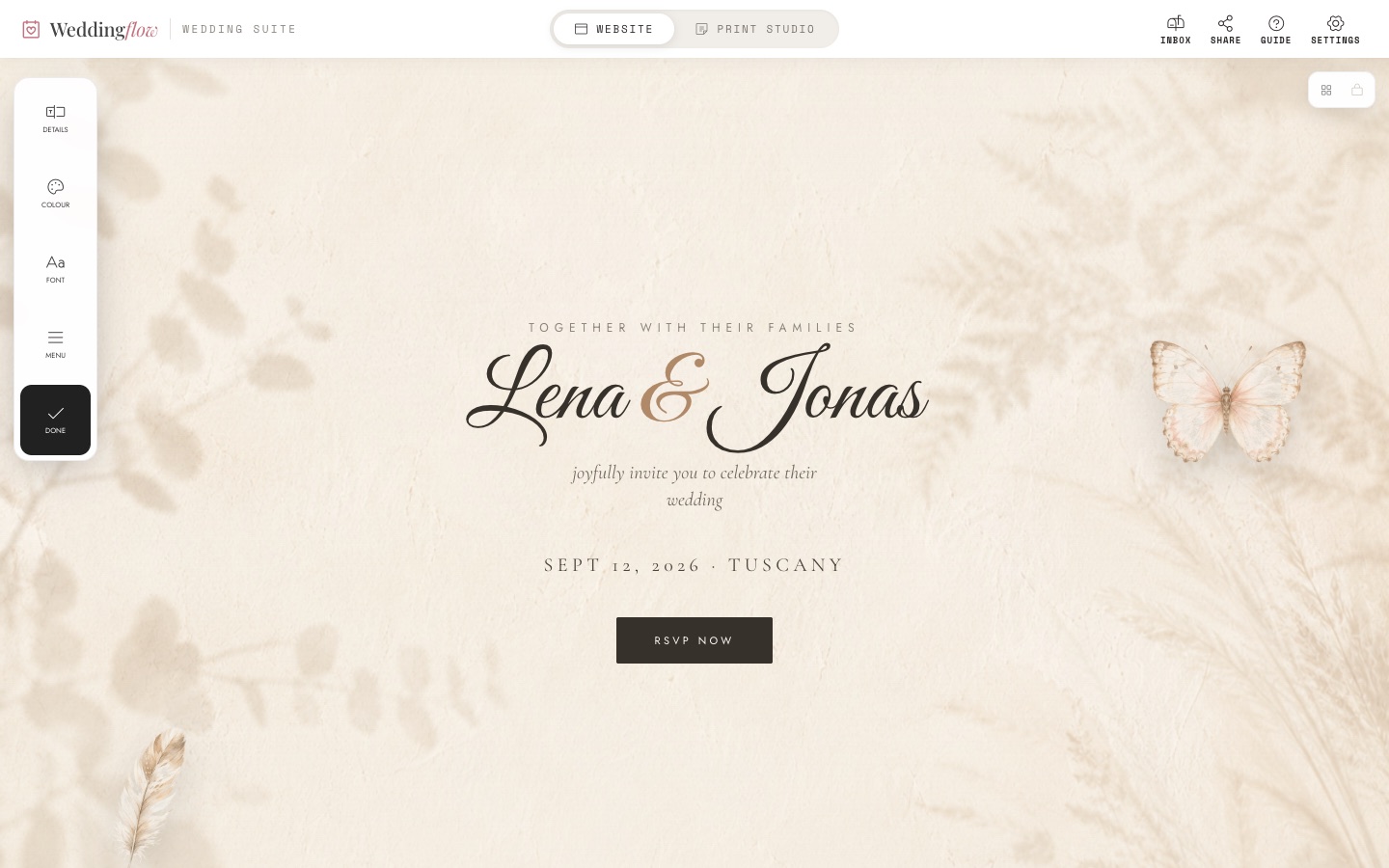
The editor — switch between Website and Print Studio at the top; your editing tools (Details, Colour, Font, Menu) sit on the left.
1 · Activate & set up
Enter your code, create your account, then add your names, date and place — and pick your personal link.
2 · Edit anything inline
Click any text or photo to change it. Everything saves automatically as you go.
3 · Build your sections
Countdown, your story, the day's schedule, a photo gallery, location & travel and guest info.
4 · Personalise the look
The Colour and Font tools switch your palette and typography in a click.
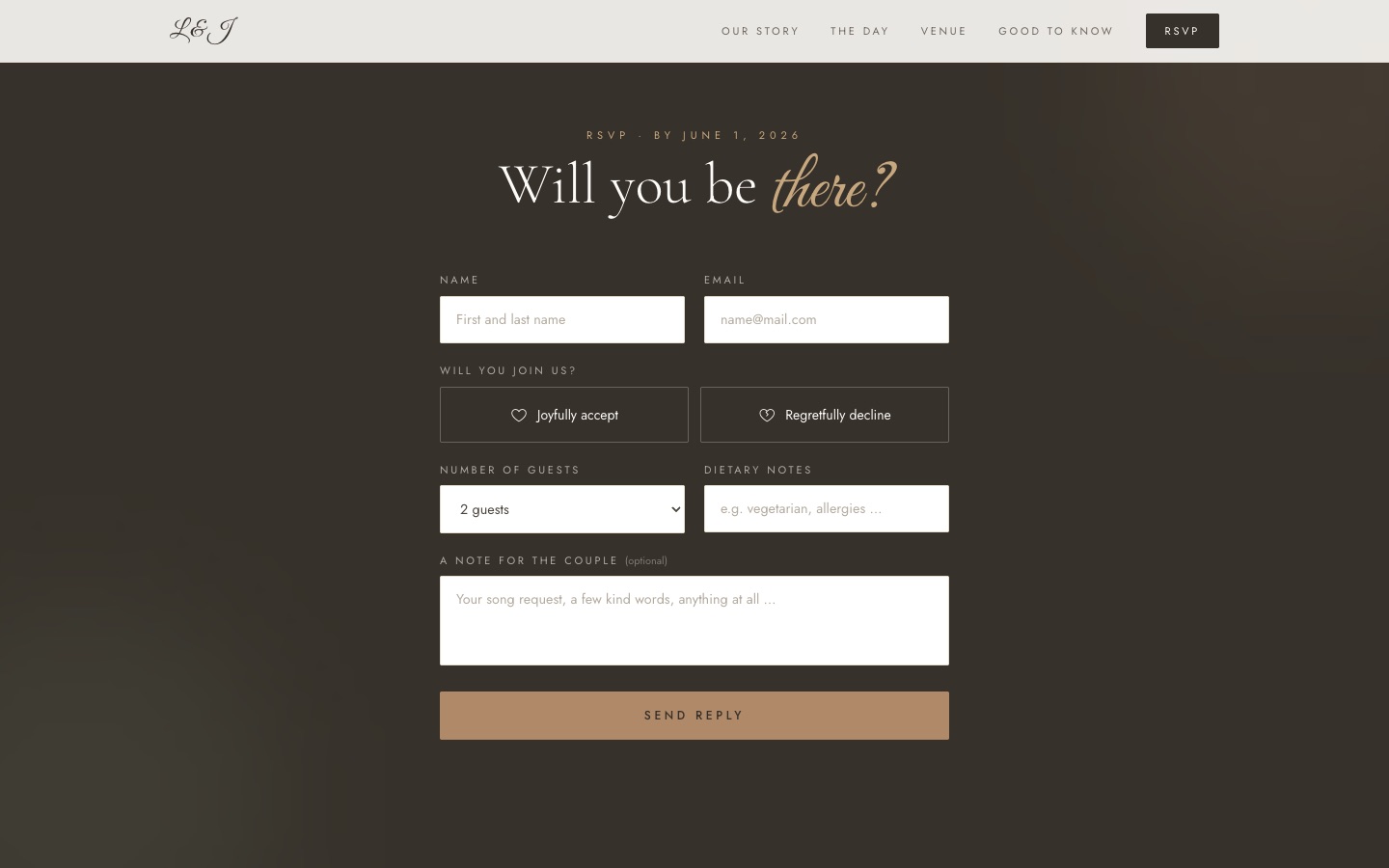
Guests reply right on your site — no app or account needed.
5 · Collect RSVPs
Yes/no, guest count, dietary notes and messages land in your inbox — with a CSV download for the caterer.
6 · Share your link
Send sites.getweddingflow.com/your-name to your guests. Hosted for life.